
DAX Approximate Match
DAX Explanation for Power BI Vlookup Video
1. Transaction Size Classification (SWITCH)
DAX Code:

How it Works:
- SWITCH(TRUE(), …): This tells Power BI to evaluate the following conditions one by one.
- <= 10000, “Small”: If the amount is 0 to 10,000, it assigns “Small”.
- <= 100000, “Medium”: If the amount is 10,001 to 100,000, it assigns “Medium”.
- “Large”: This is the “Else” condition. If the amount is greater than 100,000, it defaults to “Large”.
Explanation:
This measure replicates an approximate match logic to classify transactions based on the amount. Using SWITCH(TRUE()) allows you to evaluate conditions in order. The measure checks the transaction amount and returns Small, Medium, or Large depending on which boundary it falls under.
2. Tax Calculation Based on Salary (TAX)
DAX Code:
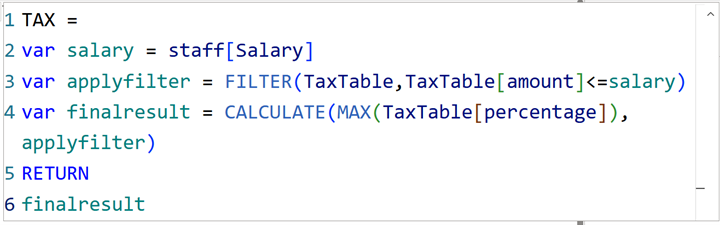
How it Works :
Step 1: Capture the Current Value We store the current employee’s salary in a variable
Step 2: Filter the Lookup Table This is the “Approximate” logic. We look at the TaxTable and keep only the rows where the bracket amount is less than or equal to the employee’s salary.
Step 3: Find the Highest Match We take the MAX of those remaining rows. This ensures we grab the correct tax rate associated with the salary
Explanation
This measure calculates the tax percentage for an employee based on their salary. It filters the tax table to all rows where the threshold amount is less than or equal to the salary. From these valid rows, it selects the highest applicable tax percentage. This mimics VLOOKUP Approximate Match by locating the correct range.
Resources