Olist Case Study · Lab 05
Olist Data Modeling
Check loaded tables and design optimal relationships for the Olist dataset. In this lab, you will exclude staging queries, verify your loaded model tables, set up active dimensions, implement inactive paths, and explore modeling patterns for transactional details.
Now that raw data is clean and unified, you are ready to construct the **relationships in your model**. To optimize database storage and performance, you must ensure intermediate staging queries do not load, identify proper cardinality, and design clean filters.
1
Exclude Intermediate Staging Queries
Uncheck Enable Load for staging tables to optimize memory
Disable Load on Staging Queries: Staging tables used only for lookups or merged steps should not be loaded into the database. In the Power Query Editor left panel, right-click the
product_category_name_translation query and uncheck Enable Load. Repeat this exact step for the olist_order_items_dataset query.
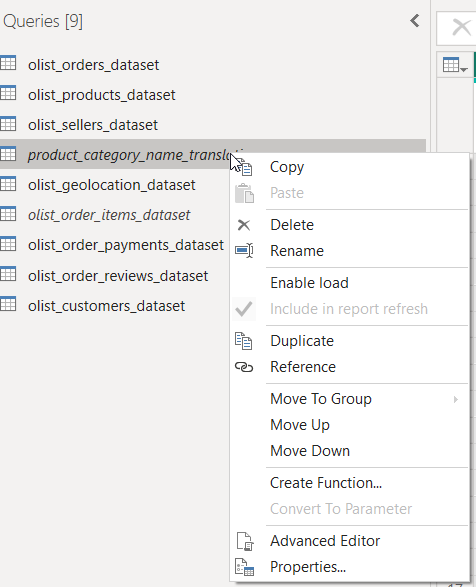
Disabling load on translation lookup query (query name displays in italics).
Verify Loaded Tables Count: Click Close & Apply. On the main Power BI report workspace, examine the **Data panel** on the right side. You should see exactly **seven tables** loaded into the data model. The intermediate queries (`olist_order_items_dataset` and `product_category_name_translation`) have been successfully excluded.
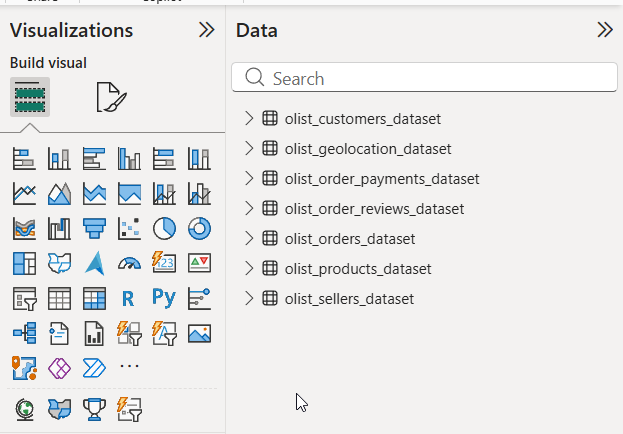
Confirming the 7 final tables loaded inside the Power BI Data panel.
2
Configure Active Relationships
Establish cardinality and filter propagation in Model view
Set Up Active Relationships: Switch to the Model view in Power BI. Drag relationships between keys to build your active schema:
- Link
customer_idinolist_customers_dataset(1) tocustomer_idinolist_orders_dataset(*) - Link
product_idinolist_products_dataset(1) toproduct_idinolist_orders_dataset(*) - Link
seller_idinolist_sellers_dataset(1) toseller_idinolist_orders_dataset(*) - Link
geolocation_zip_code_prefixinolist_geolocation_dataset(1) toseller_zip_code_prefixinolist_sellers_dataset(*)
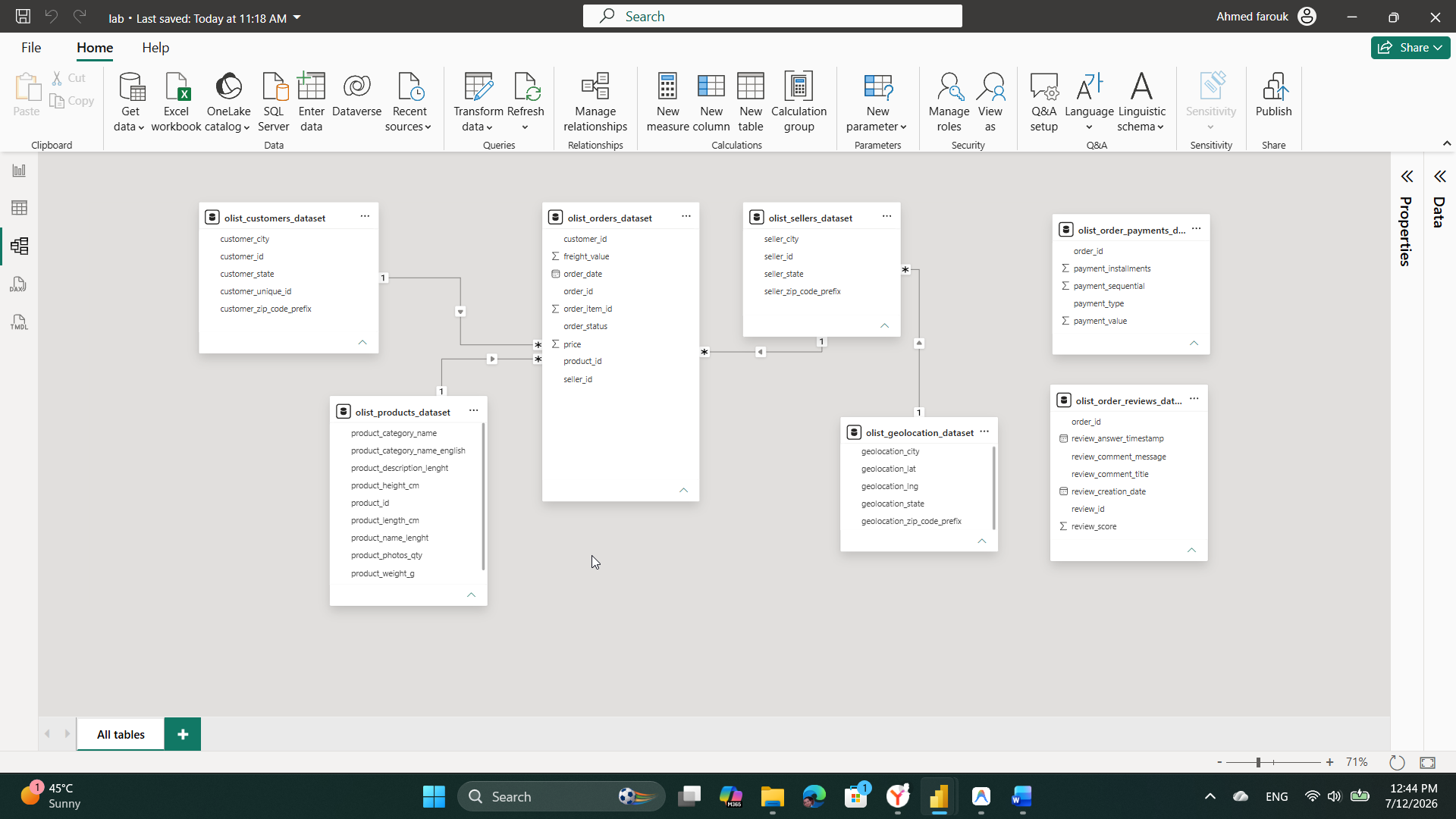
The active Olist star schema showing relationships between dimensions and transactions.
Understand Cardinailty & Direction: Each relationship should default to a **One-to-Many (1:*)** relationship with a **Single** cross-filter direction, where filters flow from the dimension lookup tables (e.g. Products, Customers, Sellers) down to the central transactional table (Orders).
Why Leave Payments and Reviews Floating? Notice that the
Rationale: Because we merged orders with items in-place (in `olist_orders_dataset`), the fact table's grain is at the line-item level (multiple rows per order). Since orders can also have multiple split payments or reviews, linking them on
olist_order_payments_dataset and olist_order_reviews_dataset tables are left unconnected.
Rationale: Because we merged orders with items in-place (in `olist_orders_dataset`), the fact table's grain is at the line-item level (multiple rows per order). Since orders can also have multiple split payments or reviews, linking them on
order_id directly would establish a complex **Many-to-Many** relationship. Keeping them floating prevents circular filter paths and performance drops. Transaction details can still be related dynamically inside specialized DAX measures when required.
3
Configure Inactive Relationships
Establish customer-location paths for spatial analysis
Create Inactive Customer Geolocation Path: Drag a relationship line from
customer_zip_code_prefix in the olist_customers_dataset table to geolocation_zip_code_prefix in the olist_geolocation_dataset table. Because the model already contains an active path from Geolocation to Customers (via Sellers → Orders), Power BI will automatically create this new link as an **inactive relationship** (represented by a dashed line).
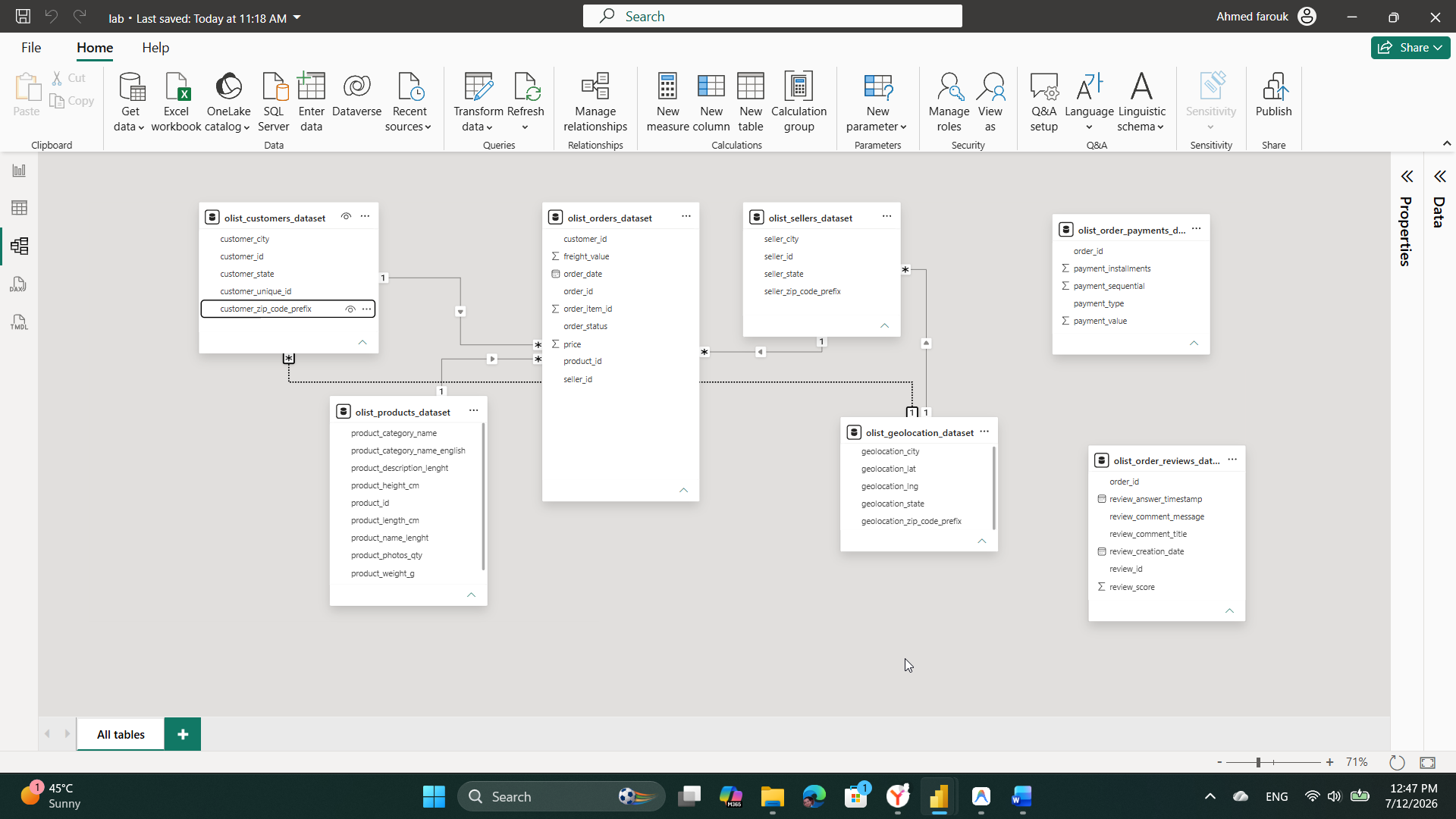
The inactive geolocation relationship created between Customer zip codes and Geolocation details.
Why Use Inactive Relationships? Active relationships enforce a single path for automatic filtering. To avoid circular dependency ambiguity, Power BI restricts alternative paths. However, this inactive link can be activated dynamically in DAX using the
USERELATIONSHIP() function when performing calculations based on customer locations rather than seller locations.